
Category: Administrative Functions
Set Up Holiday Closures and Holiday Call Routing in SmartPBX
SmartPBX can switch your main number to a holiday greeting and holiday call routing automatically on the days your office is closed. In the control panel, go to SmartPBX > Main Number > Office Holidays, tick 'Are you closed for holidays?' and add each holiday as a Single Day (such as December 25), a Date Range (such as December 24 to 26) or an Advanced rule (such as the fourth Thursday of November for Thanksgiving). Every holiday repeats each year. Then open Incoming Call Handling, select the Holidays tab, choose Virtual Receptionist, upload your greeting, add menu routes such as press 1 for the Main Voicemail Box and press 2 for the Billing Line, and save. One holiday greeting plays for every holiday on your list. VentureTel support can also set it up for you at no extra charge.
When your office is closed for a holiday, SmartPBX can switch your main number to a holiday greeting and holiday call routing on its own. You set it up once: add the days you're closed, then choose what callers hear and where their calls go. This guide uses Thanksgiving as the example, but the steps are the same for any holiday.
Rather have us do it? Open a support ticket and we'll set up your holiday routing for you at no extra charge.
Before you start
- You'll need an administrator login for the control panel at https://control.venturetel.co. See Login to Control Panel if you need help signing in.
- Have your holiday greeting ready as an audio file (.wav or .mp3). There's a sample script below.
- One holiday greeting covers every holiday. The same holiday greeting and menu play on every holiday on your list, so write it to work for all of them (for example, "closed today for the holiday").
- Decide where callers should go. For example: press 1 for the Main Voicemail Box, so callers can leave a message, and press 2 to ring the Billing Line or whoever is covering urgent calls.
Three ways to add a holiday
When you click Add Holiday, you can choose one of three types. Every holiday you add repeats every year, so you only set it up once.
- Single Day: one date, such as Christmas on December 25 or New Year's Day on January 1. Pick the month and day.
- Date Range: a run of days, with a from and to month and day. A range can cross into the next month. For example, close Christmas Eve through December 26 with Dec 24 to Dec 26.
- Advanced: a holiday that moves each year but always falls on the same weekday. Pick the month, the week (First, Second, Third, Fourth, Fifth or Last) and the day of the week. For example, Thanksgiving is the Fourth Thursday of November, Labor Day is the First Monday of September, and Memorial Day is the Last Monday of May. SmartPBX works out the date each year.
Example: Thanksgiving is the fourth Thursday in November. In 2026 that's Thursday, November 26, and in 2027 it's Thursday, November 25. Set it up under Advanced and it stays correct every year.
Step 1: Add the holiday
- In the control panel, open SmartPBX and click Main Number.
- Open Office Holidays.
- Tick Are you closed for holidays?
- Click Add Holiday and give the holiday a name, such as Thanksgiving.
- Choose the type that fits:
- Single Day: pick the month and day (for example, Dec and 25).
- Date Range: pick the from month and day and the to month and day (for example, Dec 24 to Dec 26).
- Advanced: pick the month, week and day. For Thanksgiving, set the month to Nov, the week to Fourth and the day to Thu.
- Click Save Changes.
You'll see Holidays successfully updated.
Repeat for each holiday you close for. If you're also closed the Friday after Thanksgiving, add it too. A Date Range covering Thanksgiving and the Friday after works, but because a Date Range repeats on the same dates each year and Thanksgiving moves, check the dates each fall. (Nov 26 to Nov 27 is right for 2026, and Nov 25 to Nov 26 is right for 2027.)
Under your holidays, SmartPBX shows this reminder:
Do not forget to set the call routing for when your office is closed for the holidays! To set it up, go in the "Incoming Call Handling" section of this page, and select the "Holidays" tab.
That's Step 2.
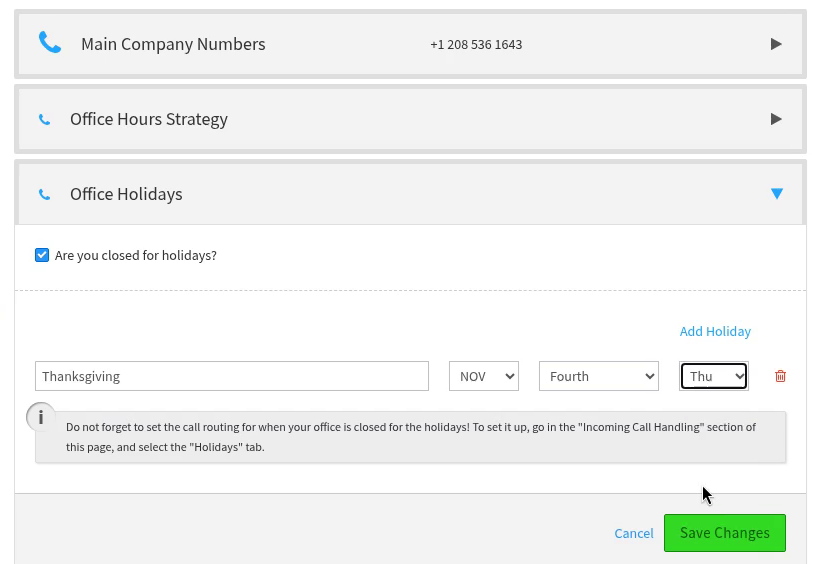
Office Holidays with "Are you closed for holidays?" ticked and a Thanksgiving rule set to NOV / Fourth / Thu. The reminder underneath points you to the Holidays tab in Incoming Call Handling, which is the next step.
Step 2: Choose how holiday calls are handled
- Still in Main Number, open Incoming Call Handling.
- Select the Holidays tab.
- Choose Virtual Receptionist, then click the Virtual Receptionist link to set it up. This plays your holiday greeting and lets callers press a number to reach the right person.
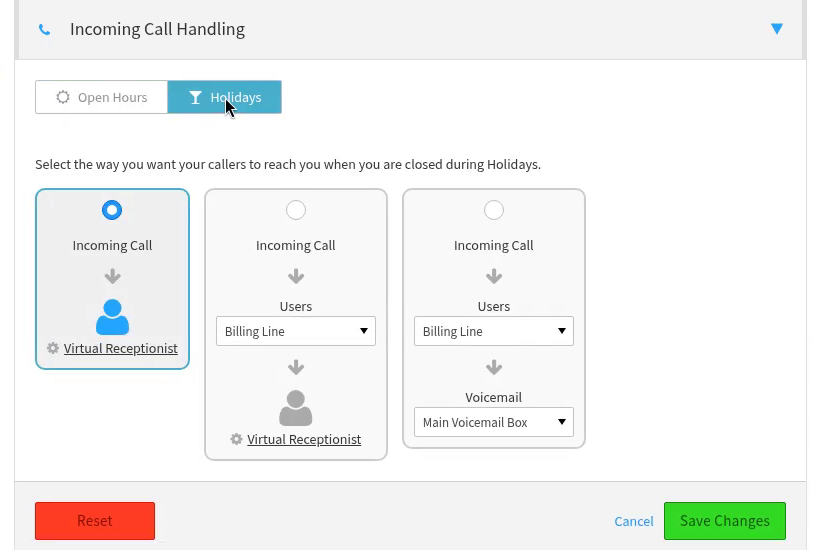
The Holidays tab under Incoming Call Handling, with Virtual Receptionist selected.
Step 3: Upload your holiday greeting
- In the Virtual Receptionist - Holidays window, go to Greetings.
- Choose Upload your own file and select your .wav or .mp3 file.
- Click Update to keep the greeting.
Remember, this one greeting plays on every holiday on your list.
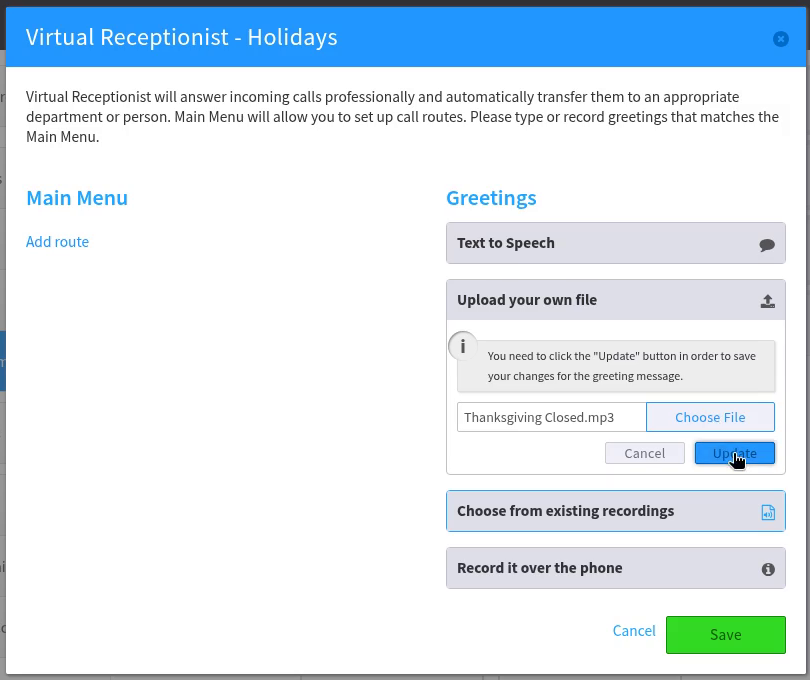
Greetings > Upload your own file, with a greeting file (Thanksgiving Closed.mp3) selected. Click Update to keep it.
Step 4: Add your menu options
Add a route for each number callers can press. Click Add route for each option, pick the key, and choose where it goes, such as a person, a phone or a group. You can also send an option straight to a voicemail box, so callers can leave a message while you're closed. For example:
- Press 1 - the Main Voicemail Box, so callers can leave a message.
- Press 2 - ring the Billing Line (or whoever is covering urgent calls over the holiday).
Make sure your greeting mentions every option you add.
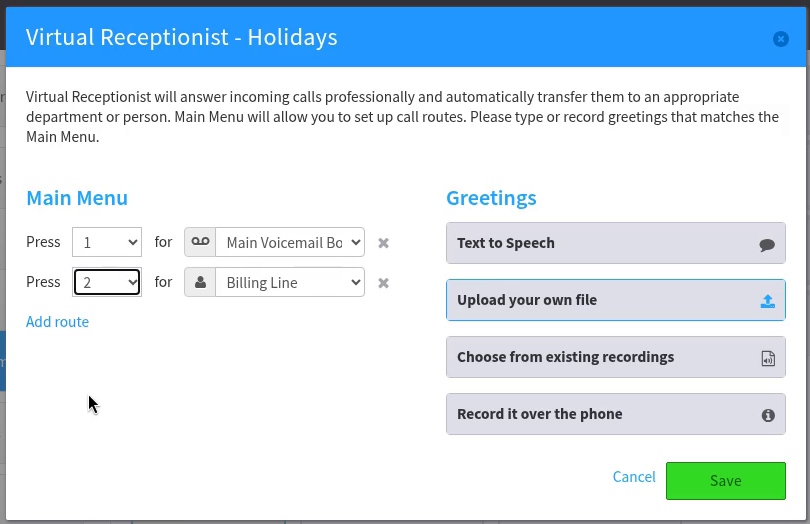
Main Menu with two routes: Press 1 for Main Voicemail Box and Press 2 for Billing Line.
Step 5: Save
- Click Save in the Virtual Receptionist window.
- Click Save Changes under Incoming Call Handling.
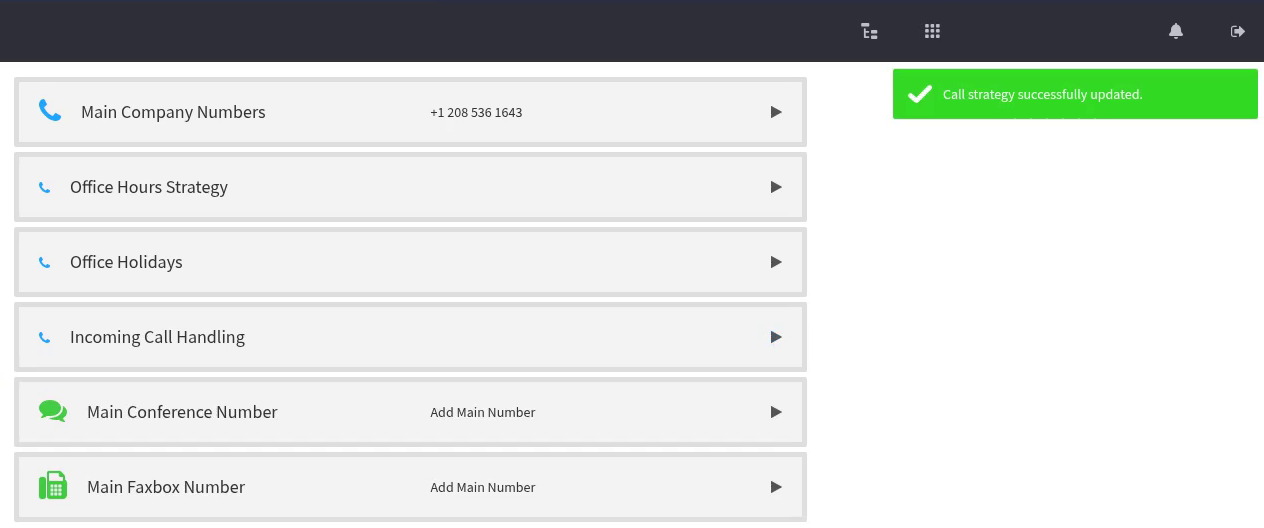
You'll see the message Call strategy successfully updated. Your holiday routing is now set. On each holiday you added, callers to your main number will hear the holiday greeting and menu instead of your usual call handling.
What to say in your holiday greeting
Keep it short. Say you're closed, when you'll reopen and what callers can do:
"Thanks for calling [Your Business]. Our office is closed today for the holiday. We'll reopen on our next business day at [time]. To leave a message, press 1. For billing, press 2. Have a great holiday."
Tip: Because one holiday greeting plays for every holiday on your list, keep the wording general ("closed today for the holiday"). If it names a specific holiday, day or date, update it before your next holiday.
Tips
- Test it. On the holiday, call your main number from a cell phone and try each option. Want to check it sooner? Open a ticket and we'll help you test.
- Closing early the day before? Holidays are added by the day. For a short day, adjust your regular office hours in Main Number for that day, then set them back afterward.
- Your regular greeting doesn't change. Holiday handling only plays on the days you add. Your open-hours and after-hours call handling stay the same.
- Custom call routing? If your main number uses a custom call flow our team built for you, or you don't see the options above, open a ticket and we'll set up your holiday routing at no extra charge.
Related articles
- Update Auto Attendant Phone Prompt
- Login to Control Panel
- Setting up your voicemail
- How to Read Your Voicemail Transcriptions on VentureTel
Want us to do it for you?
You don't have to be a phone system expert. Open a support ticket with the days you're closed, your greeting (or what you'd like it to say) and where urgent calls should go, and we'll set it up for you at no extra charge. You can also call or text us at 208.735.8999.